Apps Script
A free cron job for side projects, with Google Apps Script
No server, no paid plan. How I use a Google Apps Script time-driven trigger as a cron job that tells my backend to send overdue debt reminder emails.

Side projects keep needing small scheduled jobs: send a reminder email every morning, clean up old records every night, sync something once an hour. A real cron job usually means a server that is always on, or a paid plan on your hosting platform.
For my own projects I use something I already had: Google Apps Script. It's free with a Google account, it has scheduled triggers built in, and it emails me when a run fails. This post shows how I set it up for a job that sends reminder emails for overdue debts.
Short version: keep the job's logic in your backend behind one protected endpoint. Let Apps Script be the clock: a time-driven trigger calls that endpoint on a schedule, and Google handles the rest.
Why Apps Script makes a good personal cron
Apps Script (opens in a new tab) is Google's JavaScript platform for automating Google Workspace. Most people use it for Sheets macros, but it has three features that make it a handy scheduler:
- Time-driven triggers. Run any function every few minutes, hours, days, weeks or months, with no server.
- Failure notifications. If a run throws an error, Google emails you, daily or right away.
- An execution log. Every run is listed with its status, duration and
console.logoutput.
It's also free, and if your project already lives around a Google Sheet, it's right next to your data.
How it compares with the usual options for a small project:
| Option | Trade-off |
|---|---|
crontab on a server | Exact and flexible, but you need a server running all the time |
| Hosting platform crons | Built in, but free tiers often limit how often or how precisely jobs run |
| GitHub Actions schedules | Free for public repos, but scheduled runs can be delayed under load |
| Apps Script triggers | Free, no infrastructure, failure emails; runs within a time window, not to the minute |
For a reminder email, "sometime between 8 and 9 in the morning" is precise enough.
How the pieces fit
The setup has two parts:
- The backend exposes one endpoint,
POST /jobs/debts/overdue. It finds overdue debts and sends the reminder emails. It only accepts requests that carry a secret token in anx-jobs-tokenheader. - Apps Script holds one small function that calls that endpoint, and a time-driven trigger that runs the function on a schedule.
All the business logic stays in the backend, where it's tested and versioned with the rest of the app. Apps Script only knows a URL and a token. If I move off Apps Script one day, I point another scheduler at the same endpoint and nothing else changes.
Step 1: Write the job function
My Apps Script project, Dept Reminding, already holds other helper scripts for the app (email templates, QR codes, Firebase uploads). I added one file for the job:
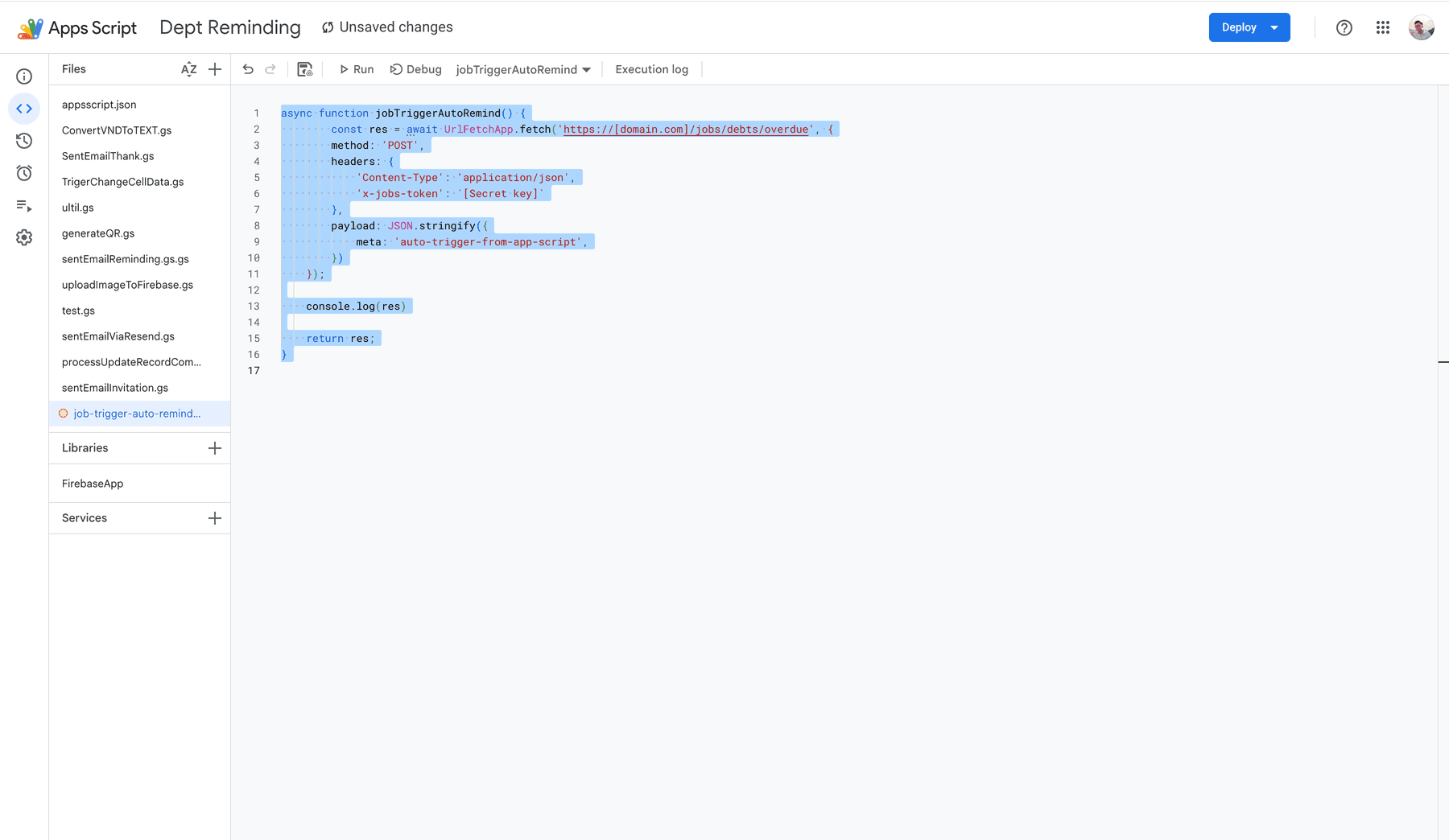
async function jobTriggerAutoRemind() {
  const res = await UrlFetchApp.fetch("https://[domain.com]/jobs/debts/overdue", {
    method: "POST",
    headers: {
      "Content-Type": "application/json",
      "x-jobs-token": `[Secret key]`,
    },
    payload: JSON.stringify({
      meta: "auto-trigger-from-app-script",
    }),
  });

  console.log(res);

  return res;
}
What each part does:
UrlFetchApp.fetchis Apps Script's HTTP client. It sends thePOSTto the job endpoint.x-jobs-tokenis the shared secret the backend checks before it does anything.payload.metatags the request, so the backend logs show that the run came from the Apps Script trigger and not from a manual call.
You can run the function straight from the editor (select it next to Run) and check the Execution log before scheduling anything.
Step 2: Move the secret out of the code
Anyone who can open the project can read a token written in the code. Apps Script has a better place for it: Project Settings → Script Properties. Add two properties there, JOBS_URL and JOBS_TOKEN, and read them at run time.
While I was there, I tightened a few other things:
function jobTriggerAutoRemind() {
  const props = PropertiesService.getScriptProperties();

  const res = UrlFetchApp.fetch(props.getProperty("JOBS_URL"), {
    method: "post",
    contentType: "application/json",
    headers: { "x-jobs-token": props.getProperty("JOBS_TOKEN") },
    payload: JSON.stringify({ meta: "auto-trigger-from-app-script" }),
    muteHttpExceptions: true,
  });

  const code = res.getResponseCode();
  console.log(code, res.getContentText());

  // Throwing marks the run as failed, so the trigger's failure email reaches you.
  if (code >= 300) throw new Error(`Overdue job failed with HTTP ${code}`);
}
- No
async/await.UrlFetchApp.fetchis synchronous, so they aren't needed. contentTypeis the optionUrlFetchAppdocuments for the request body type.muteHttpExceptions: truereturns error responses instead of throwing straight away, so the log shows the status code and the body the backend sent back.- Logging the code and the body. Logging the response object itself doesn't show you much.
- Throwing on a bad status, so a failed job shows up as failed and triggers the email.
Step 3: Add a time-driven trigger
Open Triggers (the alarm-clock icon in the left sidebar) and click Add Trigger:
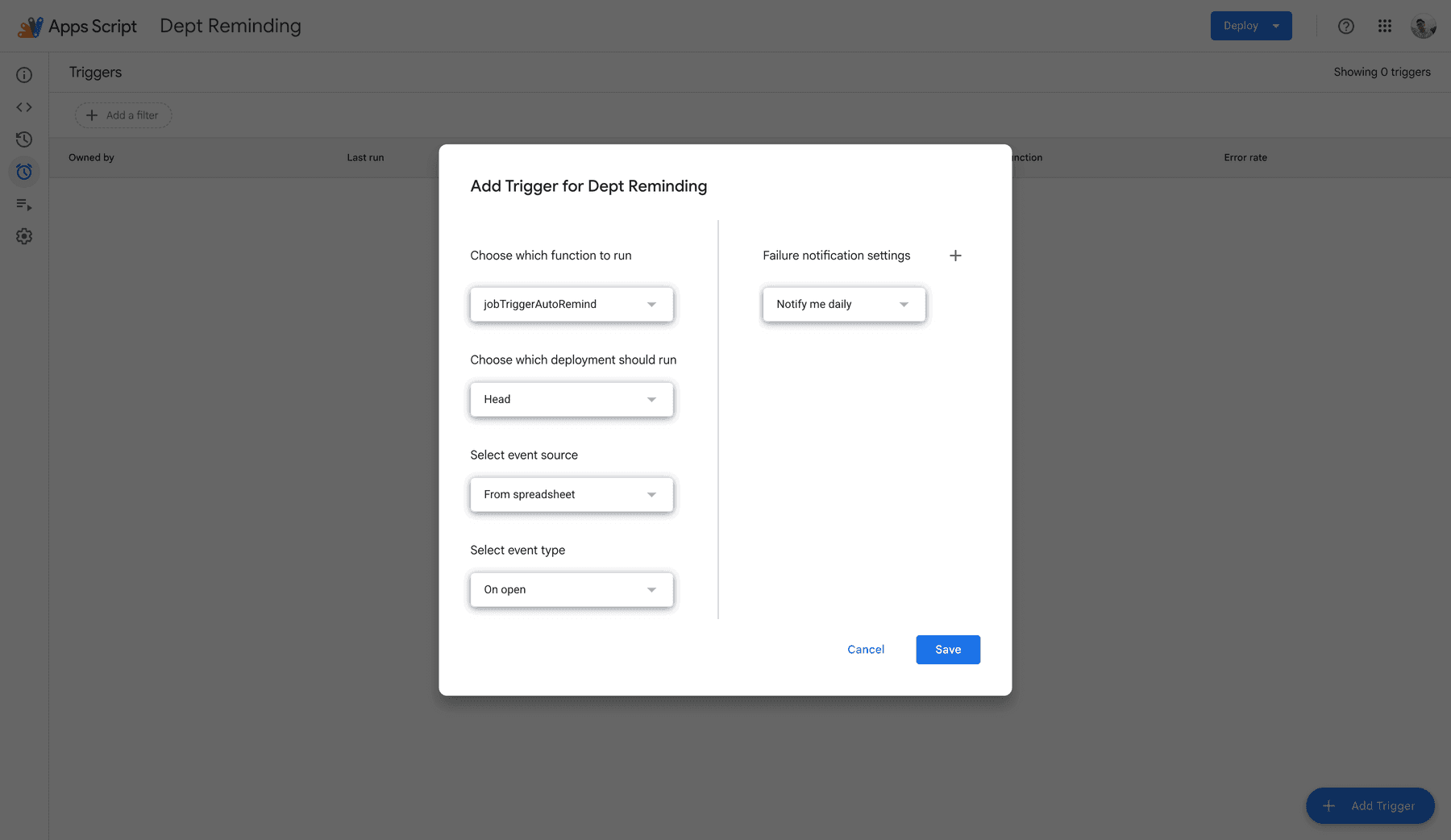
- Choose which function to run:
jobTriggerAutoRemind. - Choose which deployment should run:
Head, the latest saved code. - Select event source:
Time-driven. A project attached to a Sheet defaults toFrom spreadsheet, which runs on sheet events like opening it. That isn't a schedule. - Select type of time based trigger: pick the cadence:
- Minutes timer: every 1, 5, 10, 15 or 30 minutes
- Hour timer: every 1, 2, 4, 6, 8 or 12 hours
- Day timer: once a day, within a one-hour window you choose (for example 8am to 9am)
- Week timer and Month timer: a day, plus an hour window
- Specific date and time: a one-off run
- Failure notification settings:
Notify me immediatelyfor anything that matters, orNotify me dailyfor a digest.
Save, and approve the permissions prompt the first time. The trigger runs as you, with your account's access.
You can also create the trigger in code, which helps if you recreate projects often. Run this once:
function installTrigger() {
  ScriptApp.newTrigger("jobTriggerAutoRemind").timeBased().everyDays(1).atHour(8).create();
}
Times follow the project's time zone (Project Settings), so check it's yours before you pick an hour.
Step 4: Make the endpoint safe to call
The trigger is only the clock. The endpoint does the work, so it needs a few guards:
- Check the token on every request and reject anything without it. Keep the token in your backend's environment variables, never in the repo.
- Make the job idempotent. You'll run it by hand while testing, on top of the scheduled runs. Record which reminders went out so the same debt doesn't get two emails on the same day.
- Keep it short. Respond once the work is done, or queue it and respond straight away. Either way the request has to finish well within Apps Script's run time limit.
- Return a small summary, like how many reminders were sent. It ends up in the Apps Script execution log.
Limits to know
Apps Script is generous for personal use, but it has quotas. At the time of writing, for a free Google account:
- A single run can take up to 6 minutes.
- All trigger runs together can use up to 90 minutes a day (6 hours on Google Workspace).
- 20 triggers per user per script.
- 20,000
UrlFetchAppcalls a day.
A job that makes one HTTP call a day is nowhere near any of these. Google lists the current numbers on the quotas page (opens in a new tab).
Two more things to keep in mind:
- Timing isn't exact. A day timer runs somewhere inside its hour window. If you need a run at exactly 08:00:00, use a real scheduler.
- It's tied to your account. If the account loses access, or you remove the project, the job stops. Fine for a side project, not for a business-critical system.
Wrap-up
For a personal project, Google Apps Script is a cron job you already have: free, no server, with logs and failure emails built in. Keep the logic in your backend behind one token-protected endpoint, let a time-driven trigger call it, and a scheduled job is about 20 lines of code and a few clicks away.